How to Download
Follow the instructions for the download host shown on your link.

Downloading from Uploadrar.com
After opening the Uploadrar download link, follow the steps below. Button labels may vary slightly depending on the page.
Step 1: Choose Free Download
Click Free Download. Do not select Direct Download or Premium Download if you intend to use the free option.
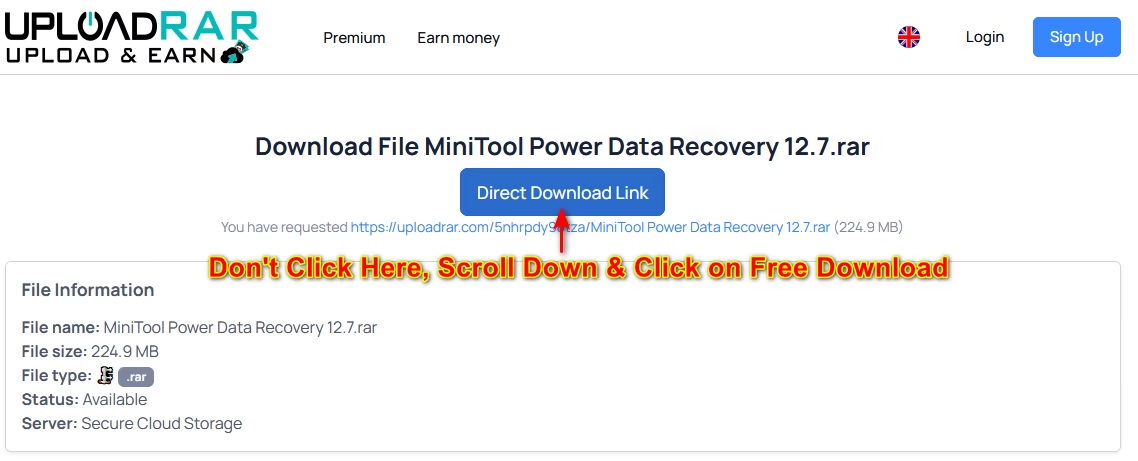

Step 2: Wait a few seconds
Wait for the page to finish its countdown or preparation. Avoid clicking unrelated ads or other download buttons.

Step 3: Click Create download link
When the option appears, click Create download link. Do not click a separate Direct Download advertisement.

Step 4: Open the generated download link
When the final link is generated, click click here to download.

Downloading from Upload.ee
If your link redirects you to Upload.ee, look for the site’s main download button as shown below.

Click the Download button to start the download. Make sure you select the actual file-hosting site’s button rather than an advertisement.
Downloading from Mirrorcreator.com
If you are redirected to Mirrorcreator, select one of the available file-hosting options shown on the page.

Choose a host, then click its corresponding download link. You will be redirected to the selected hosting website to continue.
